
The browser VNC console lets you see the VPS screen even when SSH or guest networking is unavailable. Power controls affect the running virtual machine, so check the service carefully before using them.
Reviewed: 15 November 2026 against the actual panel. IP addresses and identifying values are hidden in the screenshots. Controls depend on the server's state and permissions.
1. Find the correct service and controls
In the customer portal, open Services → Manage service. Match the full Service ID, hostname and assigned IP. Read the management acknowledgement and choose Open full VPS control panel. In the new tab, select the same server from List VPS if necessary.
The inspected server's top-right toolbar has four controls. From left to right: Stop the VPS, Restart the VPS, Poweroff the VPS, and Connect to the VPS via VNC. Hover over an icon to read its label; do not identify a destructive action by color alone.
Select a screenshot to open it at full size.

2. Choose the least disruptive action
- VNC / console opens the guest's screen and keyboard. Use it to inspect boot messages or a login prompt when SSH does not work.
- Stop requests a graceful shutdown; the OS must respond. Use it for a planned shutdown after saving work and stopping important application writes.
- Restart restarts the VPS and interrupts active connections. Save work and check the guest's shutdown requirements before a planned reboot.
- Poweroff immediately removes virtual power. Reserve it for an unresponsive guest: unwritten data can be lost or corrupted.
- Start, offered when the VPS is off, boots the existing installed system. Use it to bring a deliberately stopped server back online.
Do not use a forced power-off during updates, disk repairs, backup/restore or OS installation. A shutdown signal being accepted does not prove that the OS has finished shutting down. Submit once and follow Tasks And Logs and the current status. Repeated clicks can interrupt recovery or queue conflicting work.
Stopping a VPS is not a cancellation request and does not automatically end billing. Use the separate end-of-billing-cycle cancellation procedure if you want to stop renewing the service.
3. Open VNC Information
Click the monitor-shaped VNC control. The dialog shows VNC Information, a VNC IP/port and Launch VNC.
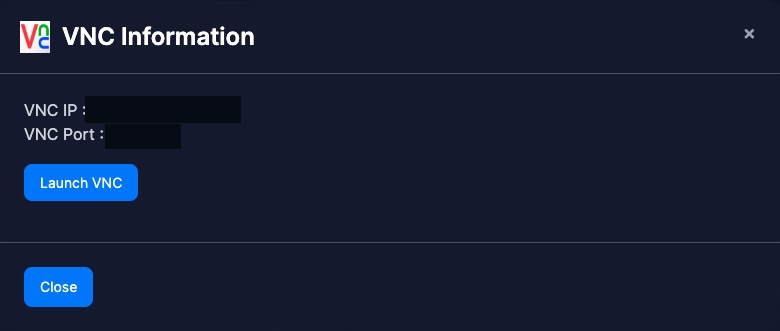
The VNC endpoint may belong to the virtualization host or its proxy. It is not necessarily your VPS's public IP and should not be copied into your website DNS or used as your normal SSH destination. Treat console links and access details as private. Do not publish a panel session URL or open port 5900 on your VPS just because a VNC port appears here.
Click Launch VNC and allow the panel's popup if necessary. A separate noVNC browser window opens. This provides a console connection; it does not automatically log you into Linux or Windows.
4. Use the console carefully
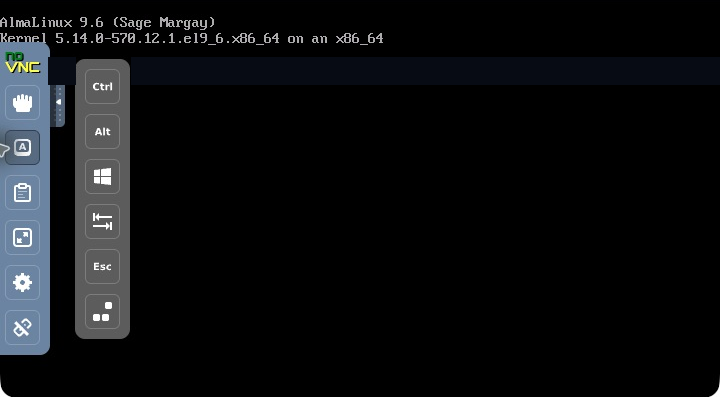
Click inside the guest screen to give it keyboard focus. If the server is booted normally, sign in with the OS account and password, not the billing account. Password characters on a Linux text login may remain invisible; do not repeatedly paste them because nothing appears. SSH keys do not automatically authenticate a text-console login.
The side toolbar includes Extra keys, Clipboard, Fullscreen, Settings and Disconnect. Extra keys help send modifiers or keys that your browser captures. Their effect is on the guest: a key combination can interrupt a program, switch consoles or restart an OS. Only send a sequence you intend; avoid experimenting with Ctrl+Alt+Delete on a live server.
Clipboard behavior depends on the guest and console integration. Do not assume browser clipboard text is automatically pasted into a Linux terminal. Never paste an unreviewed command into the console. If the screen is clipped, use viewport/scaling settings rather than changing server resources.
5. If the screen is blank or the connection fails
Wait for a boot or ongoing task to complete, inspect the panel status and reload the console once if needed. A blank console alone does not justify Poweroff. Check popup blocking and whether the server is actually running. If the normal OS cannot boot, use the rescue-mode guide or contact support with the billing Service ID, incident time and visible error.
When finished, log out of any guest OS session you opened, then disconnect/close VNC and sign out of the full panel. Closing VNC does not shut down the VPS, and closing its window is not necessarily a guest OS logout. The billing portal and management panel have separate sessions.