
The management panel separates the server's hostname, operating-system password and VNC password. Your customer-portal login is a separate credential. Changing one does not automatically change the others.
Reviewed: 15 November 2026. The screenshots show actual settings with identifying values removed. A setting's availability and whether it needs a reboot depend on the guest OS, virtualization and provider permissions.
Before changing settings
Open Services, select the intended service and verify its Service ID, hostname and IP. Read the acknowledgement and use Open full VPS control panel. Check the server again in the new tab. Keep an existing trusted SSH or VNC session available until you have verified your new access.
Take a backup of important configuration. Record any application that relies on the old hostname or credentials, such as monitoring, mail, certificates or deployment tools. Choose a maintenance window if the panel warns that a restart is required. Do not restart another server just because several services share the same plan name.
Change the hostname
Open Settings → Change Hostname. The screen shows Current Hostname and New Host Name.
Select a screenshot to open it at full size.
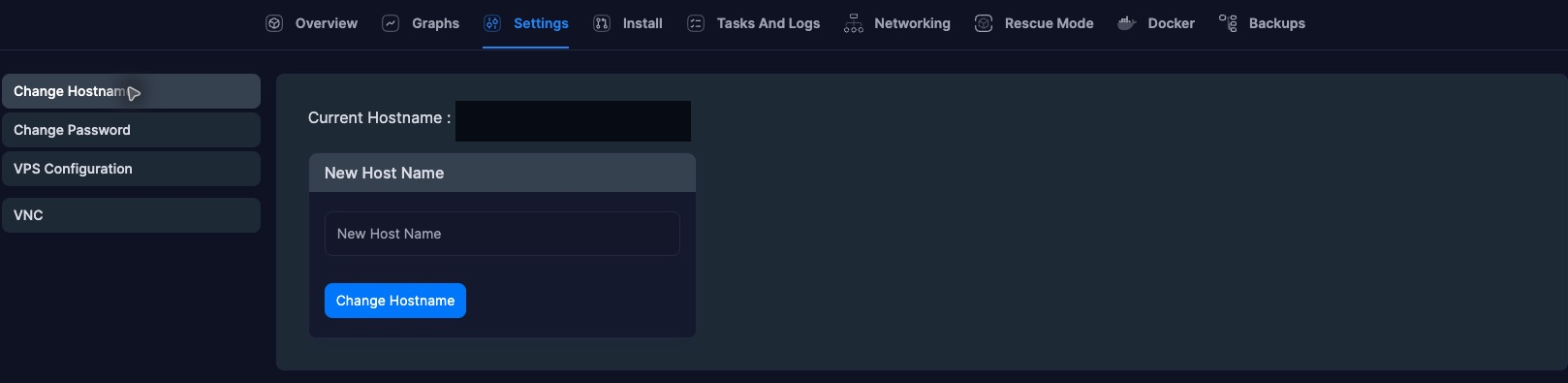
- Choose a domain-style name such as
server1.example.com, replacing the example with a name you control. - Use letters, digits and hyphens within labels, with dots separating labels. Avoid spaces, underscores,
https://, paths and leading/trailing hyphens. - Enter the new name and review any displayed restart requirement before choosing Change Hostname.
- Wait for completion, then check the panel and the OS. On Linux,
hostnamectl statusandhostname -fhelp inspect the result; the fully qualified result also depends on local name resolution.
Changing the hostname does not create DNS A/AAAA records, issue a TLS certificate or set reverse DNS (PTR). Update those separately where needed. The billing service record may also retain its previously recorded name; use the immutable billing Service ID when contacting support about a mismatch. Do not assume a panel label alone proves every application configuration changed.
Change the OS password
Open Settings → Change Password. The inspected Linux form has VPS Admin Name, New Password and Retype New Password. The administrator account depends on the installed OS; Linux commonly uses root, while Windows uses its administrator account.
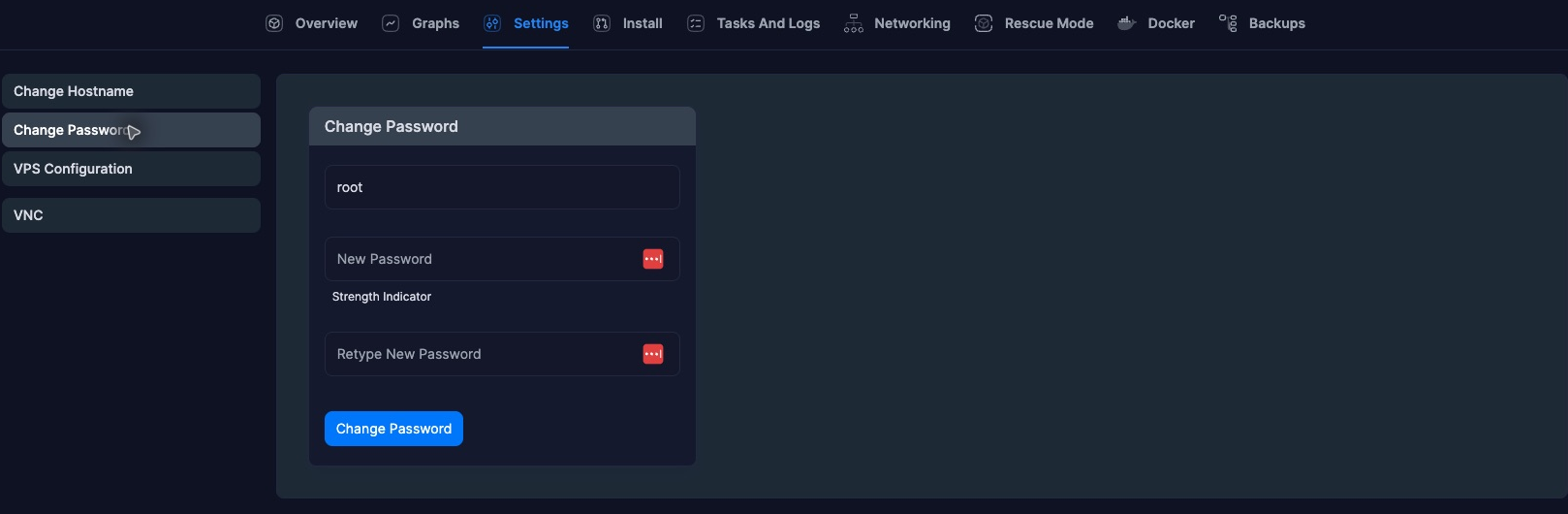
Generate a long, unique password in a password manager and enter it twice. Check the account name and submit Change Password only when ready. Follow any panel notice about applying the change or restarting. Do not repeatedly submit while a task is running.
Verify a new connection before closing your existing working session. An SSH server configured for key-only login can still reject password authentication after the OS password changes; do not weaken SSH merely to test the password. Use the trusted console or a login method your OS configuration allows. Changing a local password does not revoke existing SSH keys, application tokens or all active sessions.
The VNC settings control console access, not the OS login password. An open VNC window normally still requires guest OS login. Do not confuse this with changing the billing portal's password under Account.
If access fails
Keep the existing session open if it still works. Check task errors, keyboard layout, the selected guest account and any required reboot. If the OS cannot apply the change, use the rescue-mode guide or contact support with the Service ID and error time. Do not send the new password in a ticket.
If credentials may have leaked, changing one password alone is not a complete incident response: review keys, sessions and application credentials, and rebuild from trusted sources if compromise is confirmed. Sign out of the separate management panel when finished.