
A backup is useful only if it completed, contains the data you need and can be restored. The presence of a Backups tab or a quota does not mean that a current backup already exists.
Reviewed: 15 November 2026. The inspected server had an empty backup list and a Backup Now control. This screenshot documents the interface, not a successful backup or restoration. Availability, retention, quotas, included disks and recovery options vary by plan and configuration.
1. Open the backup list for the correct server
Sign in to the customer portal, open Services, select the service and compare its Service ID, hostname and IP. Read the acknowledgement and use Open full VPS control panel. Check the same server in the new tab, then open Backups → Backups List.
Select a screenshot to open it at full size.
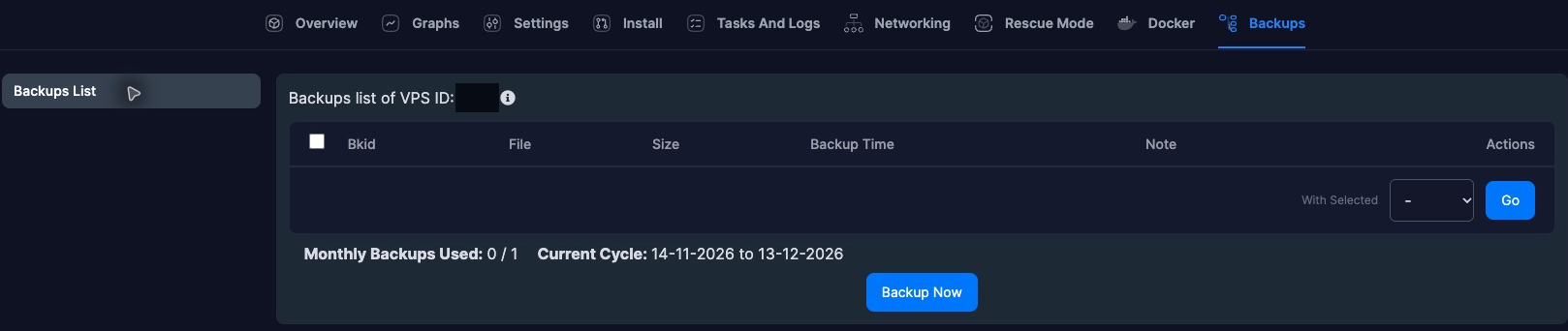
The list includes backup identifier/file, size, backup time, note and available actions. In the pictured example it is empty. Monthly Backups Used and Current Cycle are the panel's current allowance display; the numbers in a screenshot are not a promise for every customer or a retention schedule. Do not confuse this panel cycle with the service's billing expiration date.
2. Before creating a backup
Check whether the feature is enabled for your service and whether capacity/quota remains. Identify which disks and data are covered. Ask support if the policy is unclear, including where copies are stored and what happens after termination.
Prepare application-consistent data: use the database's supported dump/backup mechanism and coordinate writes or maintenance mode where needed. A running VM disk copy may be crash-consistent rather than application-consistent. Keep the database backup together with the corresponding application files and configuration.
Keep a separate encrypted copy outside the VPS and outside any single provider account. Save recovery keys where you can reach them if the server or account is unavailable. Customers remain responsible for their own backups; do not rely on an unverified automatic schedule.
3. Create once and check completion
Where Backup Now is offered and you have reviewed the impact, submit it once. Follow Tasks And Logs and wait for success. A queued request, progress indicator or accepted action is not proof that a usable backup exists. Large disks and limited storage can take time; do not repeatedly queue copies.
Refresh Backups List after completion and check the file, time and size. Investigate missing, failed or unexpectedly small copies. Record the timezone and keep a note of the application's matching database export. A displayed file still needs a recovery test; a successful job alone does not prove that the application will start after restoration.
4. Plan restoration as an overwrite
Restoring a VPS backup can overwrite the current system and lose changes made after that backup. Confirm the correct server and recovery point. Save newer files, database exports and logs separately before proceeding. Arrange downtime and pause application writes where appropriate.
When a completed backup row offers a restore action, read its exact scope and confirmation. If no restore action is available, contact support rather than using another server's URL or guessing API parameters. Do not use a bulk With Selected → Go action until you have checked exactly which rows and operation are selected; a delete action can permanently remove a recovery point.
No completed backup was available during this walkthrough, so a restore confirmation is not illustrated. The control's presence and wording may differ on your server.
5. Verify recovery and keep independent copies
After a restore completes, confirm boot and login, assigned networking, database integrity, application health and expected file dates. A restored configuration can bring back old passwords, keys or vulnerable software: review security before exposing it to traffic. Check scheduled jobs so restored automation does not unexpectedly send messages or repeat external transactions.
Practice restoring to a separate disposable environment when available instead of overwriting your only running copy as a test. Document the recovery steps and time required. For application-level off-server copies, sign in to read the client-only implementation guides.
If backup or restore fails, open a ticket with the billing Service ID, backup identifier, task time and error text, without passwords or session URLs. Do not delete the last usable copy while troubleshooting. Sign out of the management panel after use.